
This guide has been produced to show users with Administrator privileges can add and manage new users to your existing organization license without contacting Alastri Support.
Add New Users to Existing License
As an Administrator you can manage user access and view usage history.
- Begin by logging into the Alastri licensing website https://licensing.alastri.com.au/.
- Locate and press the Manage button shown below.
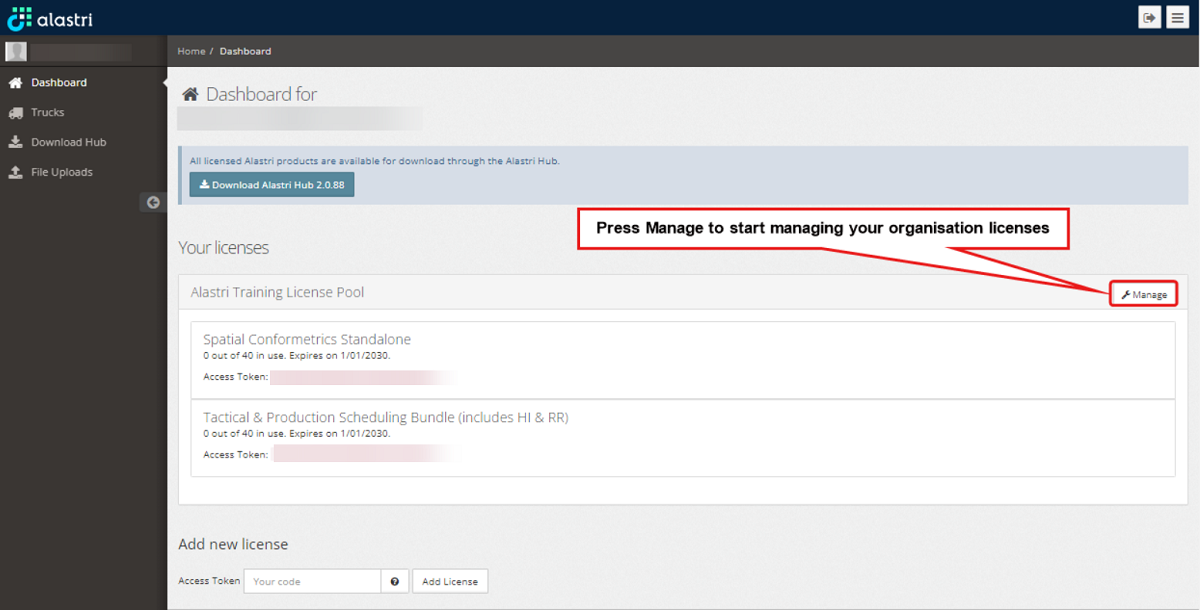
Managing your Organization License on the Home Dashboard
-
You will be redirected to your organization managing page.
The Administrator can add users with an existing and confirmed Alastri Account to an existing organization license pool.

Adding New Users to Organization
If the user to be added does not have an existing confirmed Alastri account the new user will need to first create one here and confirm the account via the Confirmation email sent to the new user.
Type in the new confirmed email address of the user to be added, select the products they require access to and click Add User. The new user can now access Alastri Hub and software purchased by their company.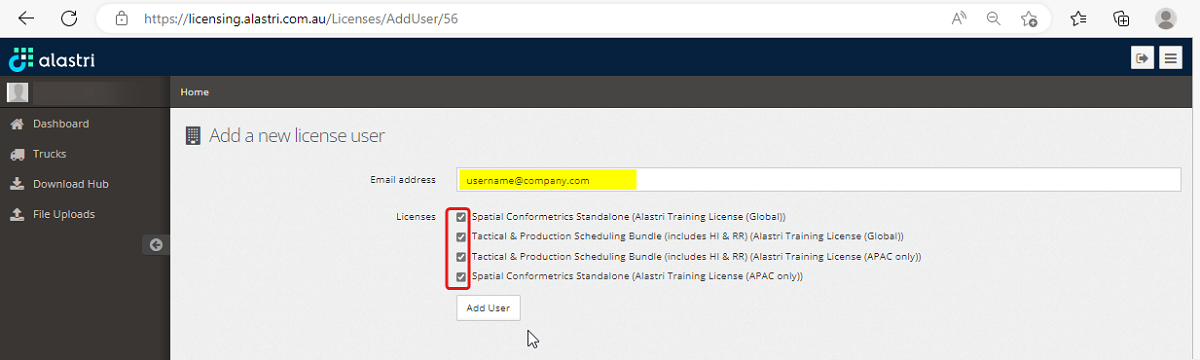
Inputting Email Address and Select Licenses to Add to User
Managing Users
As an Administrator you can manage organization users, i.e. changing their first and last names, if required.
- In your organization license pool select Manage Users, as shown below:
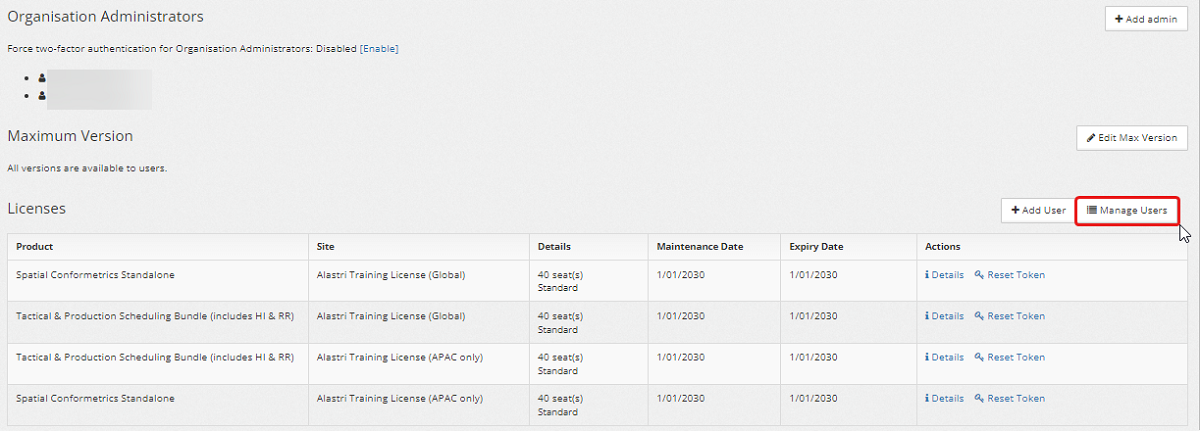
Managing Users within the Organization Licensing Pool
- In the Manage Organization Users window, edit users details as required.
- Once updating users details is completed, press the "Update Users" button

Updating Organization Users
Want to learn more?
Online Help Manuals - Click here for the latest version
Learning Management System - Click here to login or here to request access
Comments
0 comments
Please sign in to leave a comment.