
In the step Haulage Configurations, users will set the default haulage configurations for the model including default truck/loader type, haulage materials, haulage quantity type, and fill sequencing type.
With that in mind, you may encounter the following error message, which must be resolved in order to proceed further through the project setup and move on to the scheduling:
"records Matched to Unconnected Blocks or Records Were not Matched to Blocks"
Error message: "<Number> records were matched to unconnected blocks in the loaded Haul Infinity project <...> and 19 more."

Records Matched to Unconnected Blocks Error Message
The reason why this error message appears that due to Reserves or Dumps blocks have been updated and/or not connected to the haulage network. Check for unconnected blocks in Haul Infinity --> Network --> Blocks.
1. Import blocks to HI: Haul Infinity --> Scheduler --> Import Blocks from Scheduler.
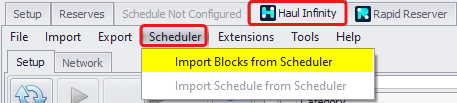
Import blocks from Scheduler
2. After scheduling blocks have been imported, go to the Network Tab --> Blocks Panel in the bottom left corner and check if they are all connected to the network. A red exclamation mark will show beside isolated blocks.
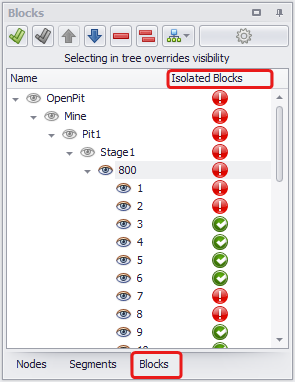
Isolated Blocks in Haul Infinity
3. When seeing isolated blocks, you need to make sure that for these blocks there is a ramp that can be used to connect them to the main haul network. You may need to review your network and make sure there is a road at the height of the bench with these blocks.
4. If using Assign Joins Based on Segment Names function, rerun the following extension.
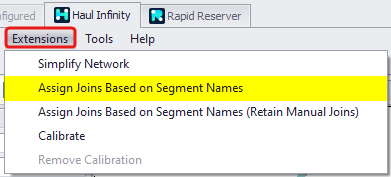
Assign Join Based on Segment Names Extension
For more details about the Assign Join Based on Segment Names function with examples, see Assign Joins based on Segment Names in Haul Infinity.
Want to learn more?
Online Help Manuals - Click here for the latest version
Learning Management System - Click here to login or here to request access
Comments
0 comments
Please sign in to leave a comment.