
This feature enables users to assign specific blocks to be mined within designated periods. It maps end-of-period surfaces to blocks, determining which blocks fall within each period.
Enabling Spatial Guidance
The Spatial Guidance feature is optional and can be enabled or disabled via the Use Spatial Guidance flag in Configuration Options. When enabled, a Spatial Guidance setup step appears in the Setup Task list. By default, this feature is disabled.
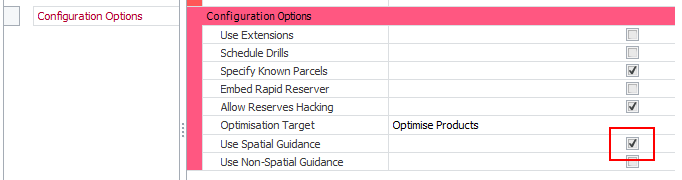
Settings -> Configuration Options -> Use Spatial Guidance
Configuration Guidance Sets
Guidance Sets are collections of End-of-Period (EOP) surfaces primarily used for organizational purposes. When assigning target periods to blocks, all EOP surfaces are combined into a single collection.
Creating Guidance Sets:
- New Guidance Set: Create a new, empty set to fill with EOP surfaces from layers or imported non-solid surfaces.
- Import from Micromine Beyond: Import EOP surfaces from a “.tridb” file and assign periods.
- Import from ATS End of Period Export: Import EOP surfaces from a “*.guidesnaps” file and assign periods.
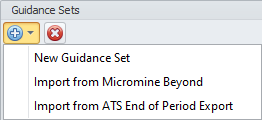
Guidance Set Options
EOP Surface Setup
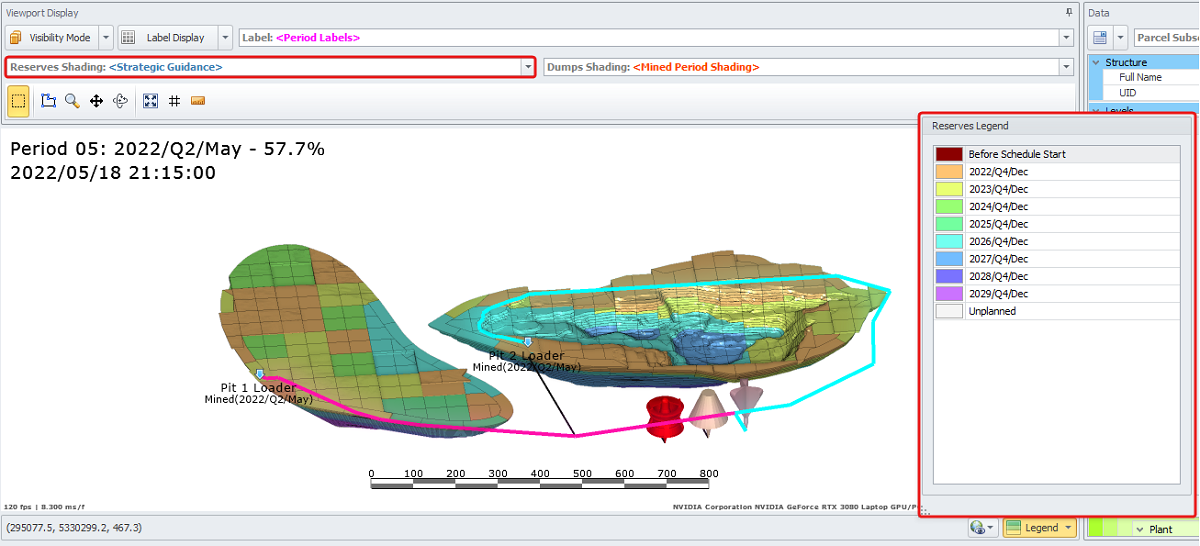
EOP (End of Period) surfaces represent the planned state of the pit at a specific date. Each EOP surface is assigned a period, ensuring that all blocks above it must be mined by that time.
When multiple guidance sets exist, they are merged into a single set for calculations, with each block assigned the earliest period from all sets.
Period Selection:
- Click the Period column to open a drop-down menu and choose a period.
- Scroll up to select a period Before Plan or down to pick a period outside the planning horizon.
Multi-Selection:
- Use CTRL or SHIFT to select multiple surfaces.
- Assign a single period to all selected surfaces in the lower panel.
- If multiple periods are selected, the upper field will display “(multiple values).”
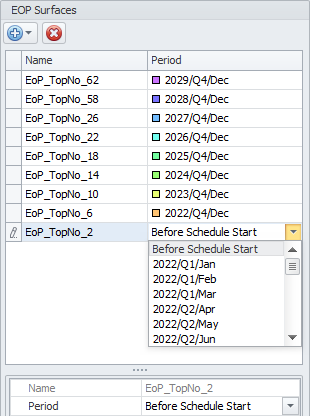
EOP Surface - Period Selection
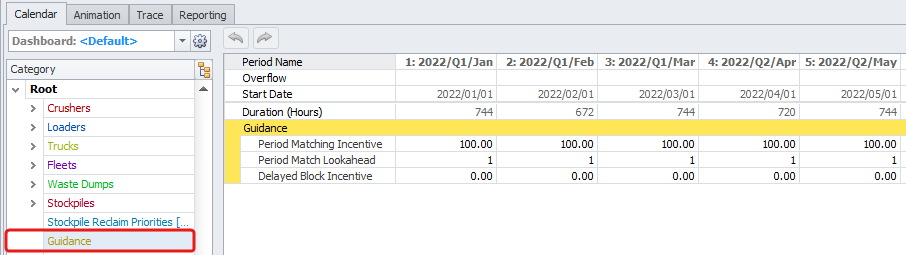
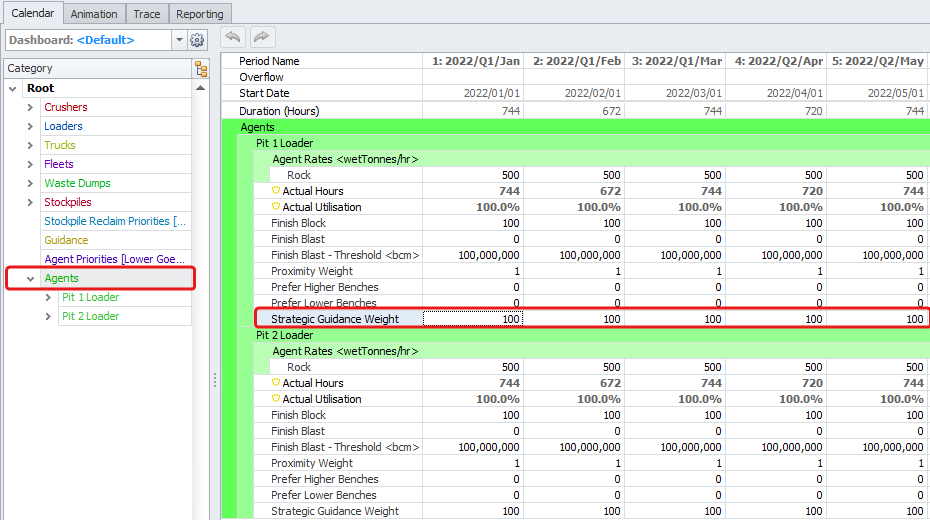
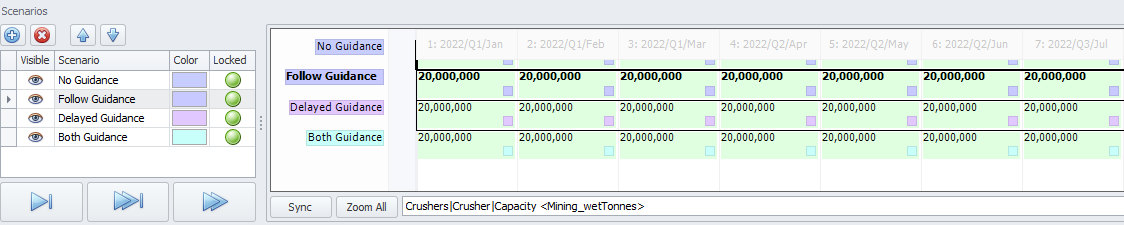
Calendar Inputs
Want to learn more?
Online Help Manuals - Click here for the latest version
Learning Management System - Click here to login or here to request access
Comments
0 comments
Please sign in to leave a comment.